How do Passwd backups work?
Tier: Enterprise
Passwd Enterprise instances include automatic backups to protect your data and enable recovery in case of accidental deletion or data corruption.
Point-in-Time Recovery (PITR)
Newer Passwd instances use Firebase Firestore Point-in-Time Recovery (PITR) for backups.
PITR allows you to restore your Firestore database to a specific point in time within the supported retention window.
For details about how PITR works internally, see the official Firebase documentation.
How to restore a backup
To restore a backup:
-
Open Firestore in your Google Cloud project.
-
Select your database and click View backups.

-
Choose the desired recovery point and click Restore.
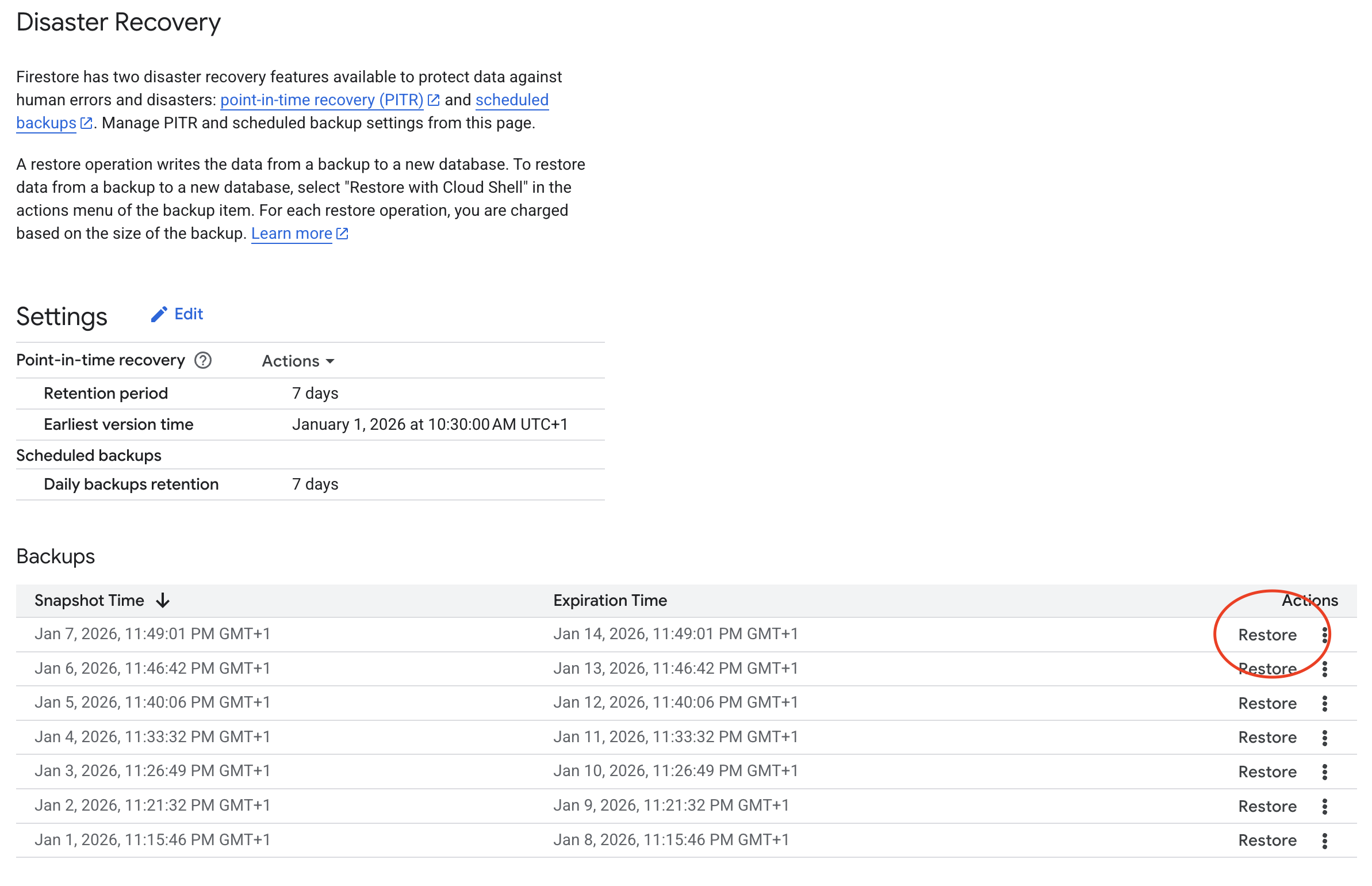
The restore operation creates a new Firestore database — it does not overwrite the existing one. After the restore completes, you must point Passwd at the new database and redeploy.
Using the restored database in Passwd
-
Note the new database ID
When restoring, choose a target database name (e.g.passwd-restored). Once the restore completes, confirm the database ID in the Firestore console. -
Update the Cloud Build trigger
- Open Cloud Build → Triggers in your Google Cloud project.
- Edit the trigger named
passwd-pipeline. - Add or update the substitution variable:
- Name:
_FIRESTORE_DATABASE_ID - Value: the database ID of your restored Firestore database (e.g.
passwd-restored)
- Name:
- Save the trigger.
-
Redeploy the app
Run thepasswd-pipelinetrigger manually (Run from the triggers list). This redeploys Passwd so it connects to the restored database.
Backups via Google Cloud Storage bucket
Deprecated
Older Passwd instances store backups in a Google Cloud Storage bucket.
This backup method is no longer used for new deployments and is kept only for legacy instances.